Showing posts with label Computer. Show all posts

Buying a cell phone is more than a matter of choosing a handset--you also have to pick a service provider, or carrier, as well. Each carrier in the United States offers s different selection of technologies and services, so it's important to think about your needs when making a choice. For that reason, selecting a carrier should be the first step in the cell phone buying process.

Twisting technology

Wireless carriers in the United States operate over two different networks: Code Division Multiple Access (CDMA) and Global System for Mobile Communication (GSM). Though each technology transmits voice and data, they do so in different ways, which makes them incompatible. As a result, you can't take a CDMA phone and use it on GSM or vice versa.
Of the U.S. carriers, AT&T (formerly Cingular) and T-Mobile use GSM while Sprint, Verizon, and smaller carriers such as Alltel and U.S. Cellular use CDMA. Though Nextel is now part of Sprint, Nextel-branded phones use a third technology called iDEN, or Integrated Digital Enhanced Network.

Each technology offers distinct advantages. Generally speaking, CDMA coverage is more widespread in the United States, especially in rural areas (though this won't be true forever), and many argue that CDMA offers better voice quality. On the other hand, GSM service has a larger global footprint (it's the standard in Europe, for example) and GSM phones use the convenient SIM cards, which you allow you to, among other things, switch phones more easily. Also, when taken on a global scale, GSM users will find a wider selection of handsets.

With that in mind, if you travel overseas frequently or you enjoy switching out your phone often for the newest model available, then GSM is the better choice. Not all GSM phones will work overseas, however, so be sure to read CNET's Quick guide to world phones. But if you'll be making calls mostly in the United States or you're eager for a choice of 3G services (see CNET's Quick guide to 3G for more information), then CDMA is an equally good option. What's more, some CDMA phones now also support GSM networks for international use.
Besides technology, there are other factors that should play in your carrier decision. You should begin by deciding which carrier has the most economical service plans and the most attractive selection of phones. The quality of customer service is another determinant, but that can be difficult to evaluate beforehand. Since knowing the pros and cons of each operator isn't easy, we invite you to take a closer look at service providers in our Carrier comparison section. Besides the major operators, you might also consider MVNO carriers that cater to a special demographic or lifestyle. For example, Helio and Virgin Mobile are targeted toward younger users while Boost Mobile is centered on urban users who want advanced features.

Ultimately though, you should base your decision on which carrier offers the best reception in your area. Because evaluating wireless coverage requires experience with the network in a wide variety of physical locations, CNET does not rate wireless carriers. With that in mind, word of mouth is an essential tool when selecting a provider. Since reception varies sharply by location, ask your friends and family which carrier they use. Also, since there's no substitute for real-world experience, ask to borrow a friend's phone, and test it in your house and your workplace. Remember that carriers have a grace period during which you can test the service and return the phone without voiding the contract. Yet if you do return a phone and cancel a contract, you may have to pay for calls made during the usage period.
 

Frequent travelers, especially those traveling for business, are almost certain to carry laptop computers with them these days. In fact, Keynamics claims that a staggering 92 percent of business travelers carry laptops on airline flights, and with recently approved plans to offer inflight broadband Internet service, there’s even more incentive to get the laptop out and use it during the flight.

There’s just one problem: airline seats and tray tables, especially in economy class, are awfully cramped and inhospitable to the laptop computer.

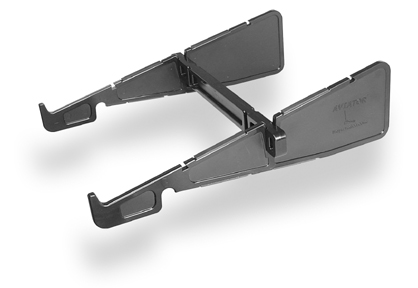
Enter the Keynamics Aviator Laptop Stand, the second product from the company that brought the laptop world the brilliant but awkwardly named Laptop Stand on Wheels.

The Aviator is a three-piece plastic and rubber affair that fits together in two configurations: flat for packing and locked upright as a stand for computing. Its ability to collapse into a flat package makes for easy transport: just slide it into a side pocket in your computer case and you’re all set.

As a stand, the Aviator works fairly well. In fact, it might be the most versatile stand I’ve used, a jack of many trades and master of one in particular: nothing beats it for use on an airliner’s tray table. Perhaps the closest overall competitor is the CoolPad line from RoadTools, but the Aviator beats both the CoolPads hands down when it comes to computing in a cramped airplane seat.

The Aviator really gets the laptop at a comfortable, elbows-in typing angle, which is important if you get stuck in a middle seat in coach with well-fed seatmates on either side, as seems to be the case so often these days. Even if you’re in a window or aisle seat, or lucky enough to be in business or first class, the Aviator really improves the typing experience. The relative position of most airline tray tables really lends itself to the Aviator’s overhanging stance, and about the only way airborne computing could get more comfortable is if you had an actual desk to use.

According to Keynamics, the angle and offset positioning offer protection from a sudden reclining of the seat in front of you. I can’t attest to the severity of this perceived hazard, but the Aviator does seem to allow for less impact to the screen in such cases than might otherwise occur. Whether you’re using a stand or not, however, if the passenger in front of you reclines his seat, you’re pretty much done using your laptop unless your arms are disproportionately short, like a tyrannosaurus rex.

Keynamics also advertises the Aviator as a desk stand, a role in which it is competent, though not excellent. Like Keynamics’ dedicated desk stand, the Laptop Stand on Wheels, the Aviator hangs the laptop off the front edge of the desk at a very comfortable typing angle. It can also be used entirely on the desk, though some of its ergonomic benefit is lost if you choose to do so.

The only major drawback of the Aviator on a tray table—or on a desk—is its front retaining hooks, which prevent the laptop from experiencing a gravitational fatal attraction to the floor. Like those on the ill-designed Contour NoteRiser, they block the optical drive slot on many Mac laptops—the MacBook line, with its side-loading optical drive, is the major exception—but unlike the NoteRiser, the Aviator allows the laptop to be lifted easily to gain access. Most people don’t swap optical media in and out very often during a single flight, so this probably won’t bother you too much.

My final minor complaint is with the security of the assembly. The plastic seems robust and slides together easily, but it slides apart just as easily. This can cause the stand to fall apart if you pick it up from one side. This isn’t a big deal as long as you remember to use both hands when moving the Aviator and computer as a unit, but it would be nice if the stand could lock into its configuration or fit together more tightly.

There isn’t a lot of quality competition at the low end of the laptop-stand market, especially when it comes to portable or quasi-portable stands. The Aviator really, uh, “stands” out as an excellent value and a truly functional product with only minor flaws. It’s more portable than its competition and much more suited to inflight use. Keynamics has done it again.


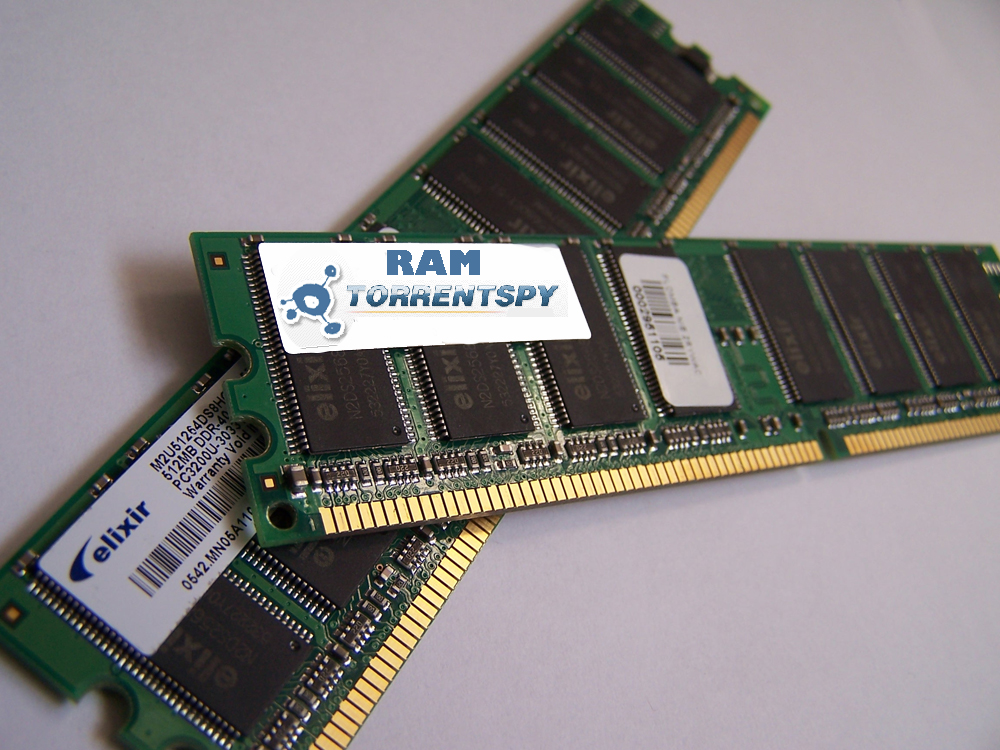
Two year ago I bought a Personal Computer (PC) with AMD 64 Processor, 512 MB/ 256 bit VGA and 512 MB RAM (Random Access Memory). When my PC was new, all of the software and games with high graphic resolution can work good performance. But recently my PC haven’t power for played some new games or graphic software. What wrong?? I was think my PC have over-load data or virus attached. When I’m looking for which make my pc not working good, I didn’t find that. From my friend I have advice, my PC is haven’t enough Memory/ RAM for running the recently software or games.
I’m confusing looking for some RAM information will I need, the RAM must be support for high performance PC. The RAM must be the same quality grade of the OEM’s likes IBM, HP, DELL, APPLE specify. Bingo… I was find the website have completely information of the RAM with the price also. The information from this site is very completely, from kind of the RAM likes SDRAM, DDR, Sodim RAM, DDR2, RAMBUS etc. What brand and capacity you’re want?. Samsung, Hynix, Qimoda Micro, Elpida or Nanya with capacity from 256 MB until 4GB are available. If you don’t know what RAM you need, you can use CS (Custumer Service) chat facility.
If you don’t know where get same information or buy RAM with good quality and haven’t time for looking for at the conventional computer store. You are can order from dealmemory RAM online store. Dealmemory have international shipping and international guaranteed for they products. After I installed 2 GB RAM for my PC, my PC can work with optimal again. All of the newest games and software can do with good. Thank for dealmemory give me same completely information about Computer RAM also best quality of the RAM. If you want looking for same information about computer RAM or buy RAM with online, dealmemory.net can be recommended seller.


How to Choose the Correct LCD Monitor
When choosing any LCD monitors, here are some features to compare. Use this guide line to compare the picture quality with price.

Brightness - The measure of how much light a panel can produce is measured in candelas per meter squared (cd/m²), also known as nits. LCDs usually run from 250 to 300 nits. HDTVs go up to 500 or more nits.

Pixel Pitch - The distance between like-colored pixels in the display. The closer the pixels, the sharper the image.

Response Time - This measures how fast the image is redrawn on the LCD screen measured in milliseconds (ms). The smaller the number, the better.

Contrast Ratio - This is the difference between the darkest black and the brightest white. The larger the ratio, the better.

Resolution - Make sure the LCD has a native resolution that matches your video card. The native resolution of an LCD is an important because if the LCD has to


Ready to get your life in order? Then maybe it's time to get a personal digital assistant. These small, lightweight devices can keep track of your appointments, phone numbers, and to-do lists, usually syncing with Microsoft Outlook or other desktop organizer software. Today's PDAs can also keep you amused with games, music, and video; a growing number have built-in cameras, and a few newer ones integrate GPS receivers as well. Even entry-level PDAs now have color screens, and all but the most inexpensive models also let you track e-mail, browse the Web, and send instant or text messages via built-in wireless Internet connectivity--Bluetooth (for connecting via a Bluetooth cell phone), Wi-Fi, and/or (in the case of PDA-phone hybrids) cellular networks. At the high end, a couple of models support two or three modes of wireless connection, so you can enjoy broadband speeds at Wi-Fi hotspots and increasingly speedy cellular hookups almost anyplace else.

The Big Picture
PDAs range from simple, unconnected devices designed primarily to replace pocket address books and calendars to powerful devices with lots of memory, wireless connectivity, integrated cameras and keyboards, and graphics muscle for playing music and video. Here, we'll discuss the main issues you need to think about, such as PDA operating systems and how much memory you need.

The Specs Explained
We'll address the CPUs used in handhelds, screen resolution, and internal versus external memory--and tell you how important each feature is to your purchase.

PDA Shopping Tips
How much memory does your PDA need? What about the different operating systems? Find the answers to these questions and more in PC World's buying advice


It's kind of a law of nature: your computer slows down over time even though nothing seems to have changed.

So how to make your computer faster again without buying a new machine?

Firstly, check how much memory your machine has. Windows always has liked to use lots of memory and modern operating systems like XP and Vista are especially greedy. If your machine has less than 2Gb of RAM memory, it's time to treat it and you to more.

Upgrading your memory to this level will make near enough everything on your computer run faster. If Windows doesn't have enough memory to work with, it will use space on your hard disk as an alternative. But hard disks are lots, lots slower than regular memory.

A memory upgrade is simple enough to do yourself - there are plenty of tutorials online to show you how - or your local computer store will be happy to help you for a small fee. The whole operation should be over quickly - it will probably take you longer to unscrew the screws on the case than it will to upgrade the RAM.

If it's only print jobs that are running slow, do the same treatment for your printer if it's possible. Color lasers especially will appreciate any extra memory you give them and will allow Windows to pass them across more of the printing job, freeing up your machine for other tasks.

If that still doesn't do enough to make your computer faster, there are other things you can try as well.


Travelling by air with a laptop computer has never been more complicated. These days, with the spate of terrorist threats, electronic devices are being banned by some airlines and airports from being hand-carried. And this includes laptops, which are traditionally hand-carried, as it’s a known fact that checked-in luggage is usually handled harshly. In other words, you can expect your laptop to be thrown around and dropped along with your luggage.

The tips, apparently sent in by Ontrack Data Recovery (who will help you recover your precious data in the event your laptop dies with all those bumps and bruises) include the following:

  • Backing up important files
  • Creating copies of important documents or files on portable media such as CDs and flash drives
  • Securing your laptop’s hard drive and software (BIOS and OS)
  • Enclosing your laptop in protective material and in-between clothes

Now I’m wondering if airlines or travel agents would insure laptops that are checked-in. After all, it’s not the passenger’s fault that he/she cannot bring the machine carry-on. If I were the airport or airline officials, I would allow laptops onboard, but the batteries and other power sources would have to be stowed in checked-in luggage. I think this is a better compromise rather than have the entire thing checked in.

If the security risk would be the possibility of using the gadget for communications, then removing the power source would be one good way to mitigate or minimize this risk.

Now, as for the laptop being another type of threat, remember anything can be used as a weapon. Even batteries wrapped inside a sock can serve as a mace of sorts. So can a canned drink wrapped in a shirt or blanket. Books can be deadly, especially if they’re hardbound. I don’t see the airlines banning socks, shirts and books anytime soon.


How Large HardDisk Laptop

Posted In: . By wito

Harddisk space is one of the major factors to be considered when purchasing or assembling a computer. Of course, this is where you would save all your files, MP3s, movies, pictures, etc. When buying a computer, my main focus is on the processor, memory (RAM), video card, and the harddisk space. But large harddisk space needed for laptop computers?

Most laptop users would have a personal computer (desktop computer) at home. They only have laptop computers for portability purpose where they can bring their work anywhere they go. For this kind of users, maybe, HDD (harddisk drive) space is just a plus when choosing laptop or notebook computers. Files are stored in computers at home, and only needed files would be stored in a laptop. For those who don’t have a desktop computer, you could still backup your files in DVDs or CDs or even the use of external harddrives which are commonly used for laptops.

So I guess, large HDD capacity is not a need for laptop computers, but of course, why not settle for the best? Large difference in HDD capacity doesn’t mean a huge difference in its price. It is not a need, but would still advice to go for the best.


Is external hard disk drives useful for laptop computers? My first thought about it is you bought a laptop for portability, so isn’t an additional hardware a hassle to bring with it? Yes maybe it is, but why do we need external an hard drive in the first place?

Since laptop is not that easy to upgrade in the first place, expanding a laptop’s internal hard drive should have been planned before purchasing a laptop. So what can we do if we need more storage space? The use of an external hard drive is the easiest option. You don’t need to bring you laptop in a service center to change your current hard drive.

Laptop is mainly used to bring your needed files where ever you go. But you don’t need all the files especially pictures and movies that you have already watched everywhere you go. And external hard drives are the best options for backups. A bonus is, you may also bring it anywhere you want.


Laptop or Desktop ?

Posted In: . By wito

As written in my previous article, a personal computer is somewhat a necessity for most of us especially in the IT industry but there is always a dilema on deciding if he will be buying a traditional desktop computer or a portable notebook. I’ve read an article stating pros and cons of each side.

“If the main purpose of buying a computer is for occasional use, regardless if it is for work or entertainment activities, one may consider buying a traditional desktop computer taking in consideration that its price is usually lower than the portable version.

If the main reason for the purchasing of a computer is portability, then in this case the notebook will be the right choice.”

A more detailed discussion could be read at their website. It still depends on the main purpose why you are buying a personal computer. Both have their advantages and disadvantages, either would be helpful. You may just need to consider practicality and quality.